
Insights / Deliverables
How to export an AAF for audio post-production from Premiere Pro, DaVinci Resolve, Avid and Final Cut Pro
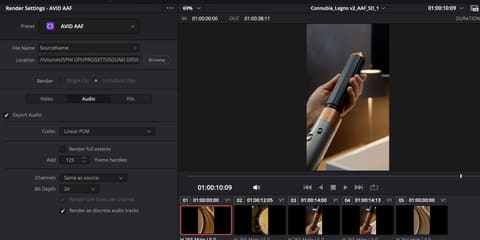
The settings that matter are the same in every editing software: audio embedded in the file, handles of at least 5 seconds, 48 kHz at 24 bit, audio effects not rendered. Only the place of the options in the menus changes.
Before exporting, in any software
- Duplicate the sequence and work on the copy: video can be removed and tracks reordered without touching the edit.
- Ordered tracks: dialogue on top, then effects, then music. They arrive in Pro Tools in the same order.
- Nested sequences, multicam and merged clips: flatten them first. In the AAF a nested sequence becomes a stereo mixdown, not the individual clips.
- No speed changes on audio clips: they get lost or arrive wrong. If they are needed, better to render them to a new file.
- Clip and track names without special characters (
/ < > & @ ®and accented letters): they are the most frequent cause of AAFs that do not open. - Start timecode of the sequence equal to that of the reference video (for example 01:00:00:00).
Premiere Pro
File > Export > AAF.
- Mixdown Video: no. The reference video is exported separately.
- Breakout to Mono: yes. Each channel goes to a separate mono track and Pro Tools reads them without conversions. It matters most when stereo clips are really two different microphones, such as the boom on the left and the radio mic on the right.
- Enable (rendering) / Render audio clip effects: no. Clip effects do not carry over to Pro Tools: if they are rendered, the EQ or the noise reduction stays printed in the file. If rendering is needed to convey the intention, also tick "Include clip copies without effects": two tracks per clip arrive, one "FX" and one "No FX".
- Save as legacy AAF: no.
- Embed Audio: yes, a single file. "Separate Audio" is only right when the production recorder's metadata must be kept (field recorder workflow): in that case also tick "Preserve media directory name".
- Format: Broadcast Wave.
- Render: "Trim Audio Files" with Handle Frames at 120 or more (5 seconds at 24 fps; 125 at 25 fps). "Copy Complete Audio Files" copies the whole files: heavier, but handles are there by definition.
- Bits per sample: 24. Sample rate: 48 kHz.
Clip volume, volume keyframes and crossfades are read by Pro Tools. 5.1 and adaptive tracks are better converted to standard tracks first.
DaVinci Resolve
The AAF for Pro Tools is exported from the Deliver page, with the Pro Tools preset among the render presets at the top. File > Export > AAF, XML produces a generic AAF that opens badly in Pro Tools.
- Video: "Export Video" off, if the reference video is exported separately. The format in the video panel still decides the type of audio file: QuickTime = Broadcast Wave, MXF OP-Atom = MXF.
- Audio > Codec: Embedded in AAF for a single file. "Linear PCM" produces an AAF with the audio files in a separate folder.
- Render one track per channel: leave it ticked, mono files.
- Add X frame handles: tick it and set 120 frames or more (at 25 fps: 125 = 5 seconds).
- 48 kHz, 24 bit in the audio panel.
- Fairlight effects (EQ, compressors, FairlightFX, Elastic Wave): they are neither exported nor printed. If an effect must arrive, render it into the clip first ("bounce" or render in place).
- Then "Add to Render Queue" and "Render All".
Two things specific to Resolve: disabled clips are exported anyway, and they arrive enabled in Pro Tools (better to delete them); and in Preferences > User > Editing it is worth enabling "Align audio edits to frame boundaries", otherwise sub-frame cuts may shift.
Avid Media Composer
File > Output > Export to File, then "Options" and "Export As: AAF".
- Include All Audio Tracks in Sequence: yes. Video tracks can be excluded.
- Audio Details > Export Method: Consolidate Media, with Handle Length at 120 frames or more. "Link to (Don't Export) Media" produces an AAF without audio: it only opens on a machine that sees the same media.
- Render All Audio Effects / Include Rendered Audio Effects: off. Track effects (inserts) appear in Pro Tools as inserts and do not play.
- Convert Audio Sample Rate to Project / Bit Depth to Project: 48 kHz and 24 bit. Convert Audio File Format: WAVE.
- Media Destination: Embedded in AAF.
- Crossfades arrive as real-time fades (from Pro Tools 12.6 onwards), and so does clip volume.
Final Cut Pro
Final Cut does not export AAF. The standard route is X2Pro Audio Convert (Mac App Store, Marquis Broadcast):
- In Final Cut,
File > Export XMLof the project. - In X2Pro, open the XML and in the Roles tab choose which roles to include and in what order: each role becomes a group of tracks (dialogue, effects, music), with "Keep sub-roles separate" on. That is why it is worth assigning roles carefully in Final Cut before exporting.
- Set the handles (5 seconds) and embedded audio, then convert. Volume, keyframes and crossfades carry over.
Free alternative: import the XML into DaVinci Resolve and use the Pro Tools preset of the Deliver page as above. Compound clips must be broken apart before the XML export in both cases.
To deliver together with the AAF
- The reference video with the same frame rate and the same start timecode (H.264 1080p or ProRes Proxy), with burnt-in timecode if possible.
- A reference mix in WAV, that is the audio as it sounds in the edit: it shows the intention and is used to check sync on import.
- If there is one, the folder with the files of the original production sound with the sound report: what is needed beyond the AAF is in What to deliver to your sound designer.
In short. Copy of the sequence without nested/multicam · embedded audio · handles of 120+ frames · Broadcast Wave 48 kHz 24 bit · audio effects not rendered · reference video with the same timecode.
A test before the real delivery
On a long project, better to export a 30-second AAF a few days before picture lock and send it: if there is a settings problem it shows up at once and gets fixed early, not on delivery day. Write to me and I will check it.
Sources
Production Expert, "How To Create A Pro Tools Friendly AAF" for Adobe Premiere, DaVinci Resolve and Avid Media Composer (production-expert.com) · Avid Knowledge Base, "Media Composer AAF Audio Export Options for Pro Tools" (kb.avid.com) · Blackmagic Design, DaVinci Resolve Reference Manual, Deliver page, Pro Tools preset · Marquis Broadcast, X2Pro Audio Convert, conversion guide (x2pro.net) · Adobe, "Export AAF files", Premiere Pro user guide (helpx.adobe.com).